Add a Readable Watermark Without Hiding the Subject
Use the text-watermark controls to compare placement, opacity and size on the actual exported image.
Content updated:
Decide what the watermark needs to communicate
A watermark can identify a creator or mark an image as a preview. Keep its message short enough to read at the intended display size. A small studio name may be suitable for a portfolio; a client-review copy might need an explicit Preview label.
A visible watermark is not access control or a guarantee against reuse. It can be cropped or edited, and it does not establish ownership by itself. Retain your original files and a record of the work instead of relying on the mark as the only evidence.
Use the controls that affect the finished image
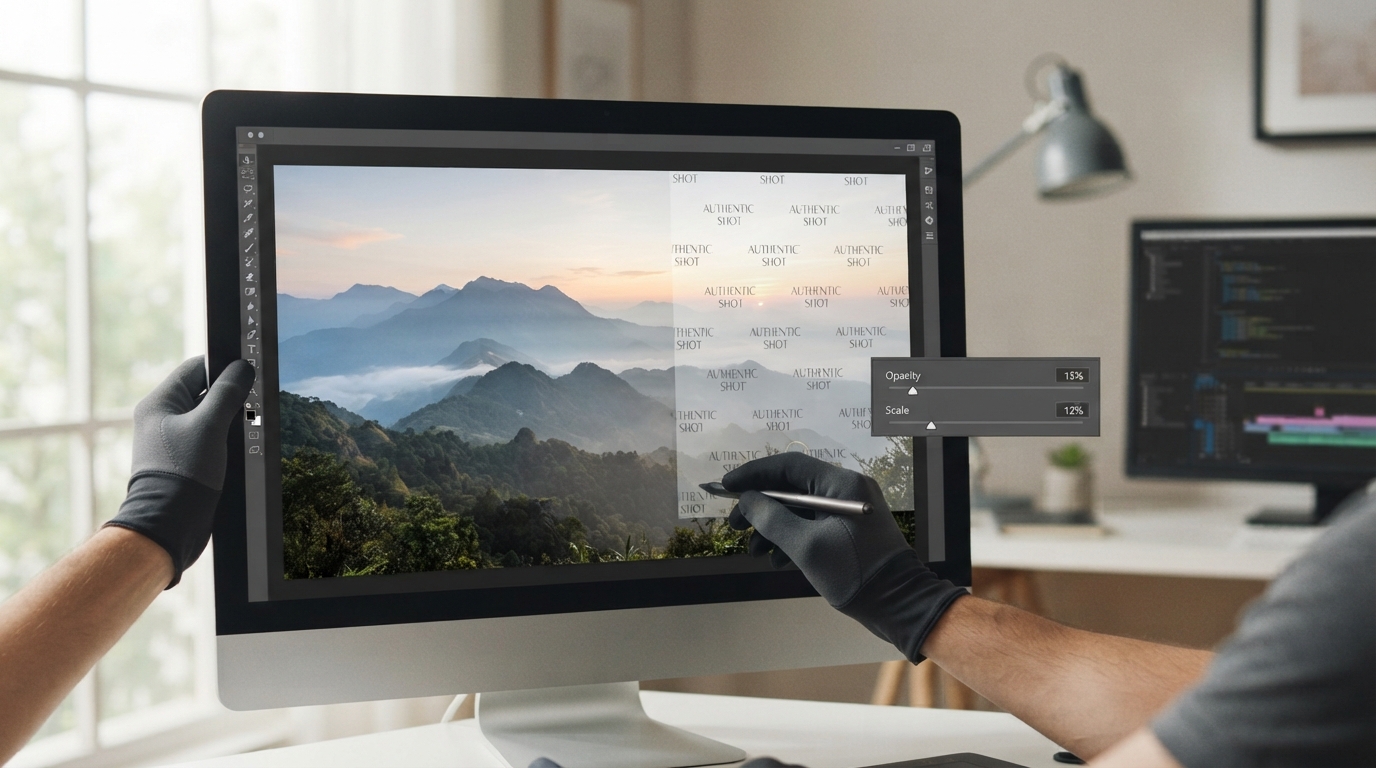
TheImageIs Watermark Image adds text with adjustable font, size, color, opacity and position. It does not require you to prepare a transparent logo. Place the text where it does not hide a face, product label or other essential detail, then check how much of the image it occupies.
Try a medium opacity first and compare a lighter and darker text color. The same setting behaves differently over bright sky and a patterned table. Treat percentages as experiments, not a prescribed formula. If legibility requires a large opaque block, a different placement or a shorter label may work better.
A repeatable two-version exercise
Use the same photograph to create two watermark candidates. In the first, place a short name near a quiet edge with visible padding. In the second, move it slightly inward so a small thumbnail crop is less likely to remove it. Keep the font and export dimensions unchanged while comparing positions.
Next, vary only the opacity of the preferred position. At normal display size, check whether the text can be read without covering useful detail. For a product photo, ask whether the watermark prevents a shopper from seeing the feature the image exists to show. This exercise produces your own comparison; it does not claim a measured protection benefit.
Inspect the exported copy and any platform crop
Download the watermarked file and reopen it. A live text overlay in the editor is not evidence that the final export includes it. Check spelling, margins, visibility and whether compression has damaged thin letters.
Upload a test copy to the intended preview or page and inspect its thumbnail. The platform may crop or scale it. Keep a clean master and give the sharing copy a distinct filename so the watermarked derivative never becomes the only source for future work.
Compare placement and opacity independently
A guided exercise, not a benchmark. Inspect your own output; results depend on the source and settings.
- Open a copy of an image in Watermark Image and enter a short attribution label.
- Create two position candidates with the same font, size and opacity.
- Choose the better position, then compare two opacity settings at normal display size.
- Download the result and inspect it in the destination's thumbnail or page preview.
The text is correct and readable, the important subject remains clear, and the final crop does not unexpectedly remove the mark.
Sources & further reading
Try an idea and review your result before saving your edits.