Crop for Stronger Composition Without Losing Important Context
Identify the subject, retain the details that explain the scene and check the surviving pixel dimensions before export.
Content updated:
Decide what the photograph needs to communicate
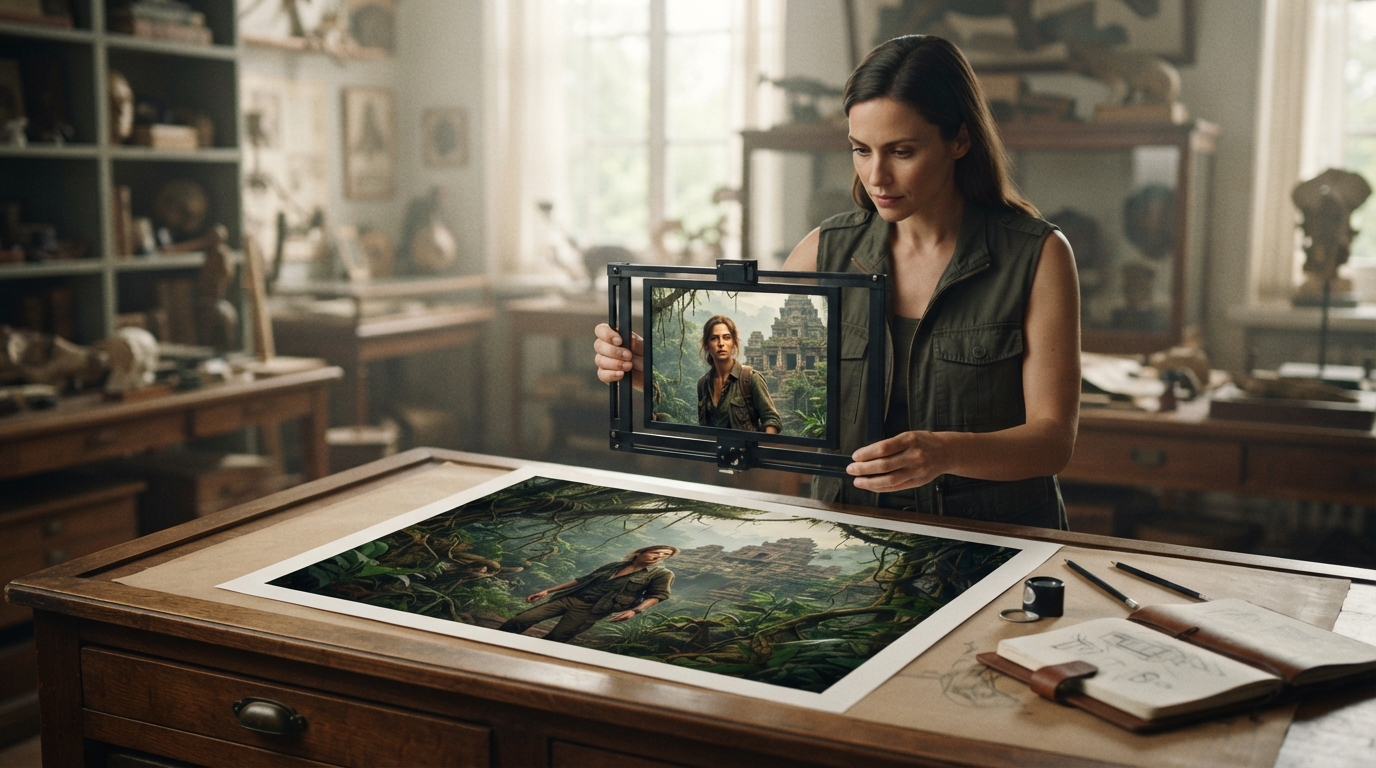
Before moving the crop box, write one sentence describing the picture's purpose. For an artisan portrait, it might be 'show the person shaping the bowl.' The hands, tool and bowl then become required content, while an empty ceiling or bright cable may be expendable.
Separate the primary subject from supporting context and distractions. Cropping is useful when it reduces distractions, but removing context can change the meaning of an event or make a product look different. Keep the original so that the decision can be reviewed.
Choose the ratio before refining the edges
Set the required shape first, then move the selection over the relevant content. A portrait crop will remove different surroundings from a wide banner. The rule of thirds is one composition option, not a rule that makes centered framing wrong.
Leave room in the direction a subject looks or moves when that supports the scene. Scan the perimeter for awkward partial objects and near-touches between the frame and a handle, hand or other important edge. An intentional detail crop should look deliberate rather than accidental.
Calculate the detail that remains
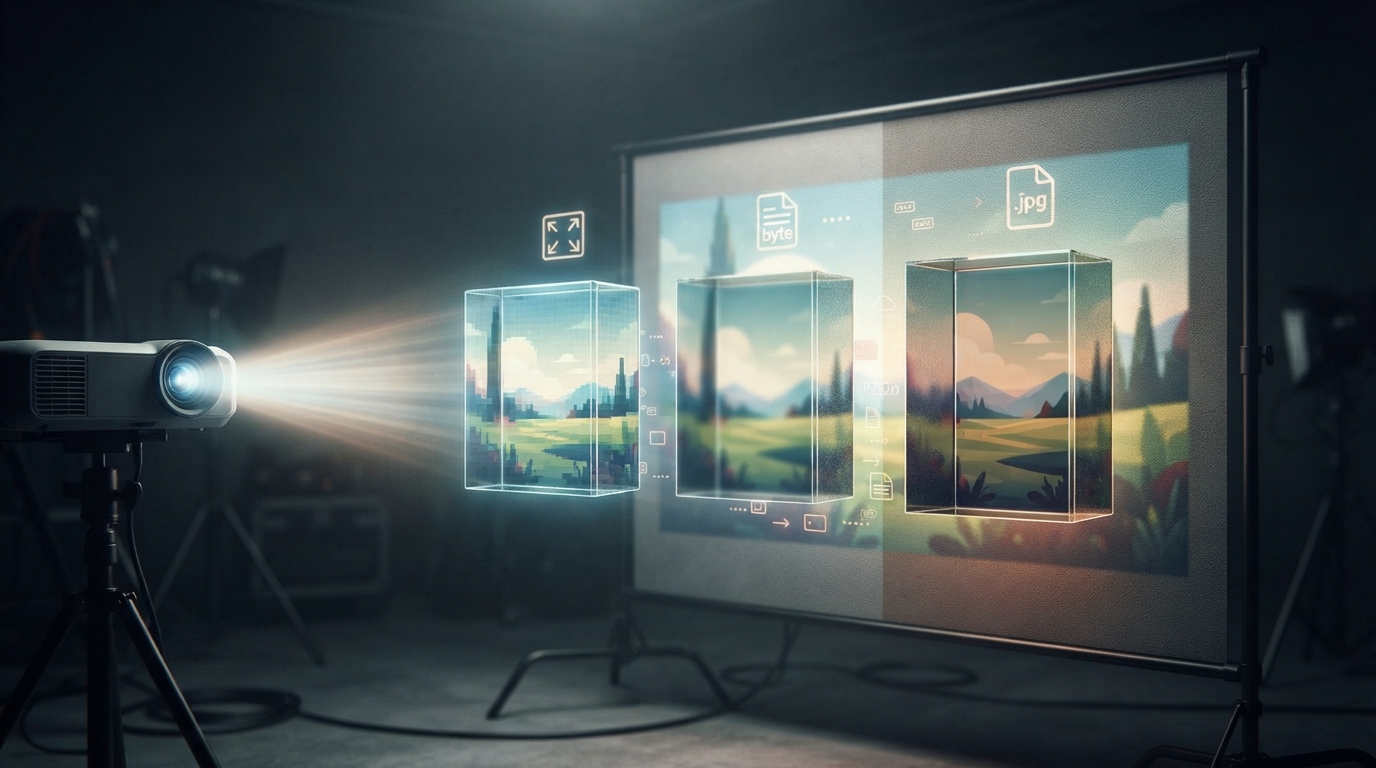
In an illustrative 6000 × 4000 photograph, a 2400 × 3000 crop has a 4:5 ratio and contains 7.2 million pixels. Exporting that selection at 1080 × 1350 scales each dimension by 0.45. The calculation shows that enlargement is unnecessary; it does not prove that the source was in focus.
A crop only 500 pixels wide will need enlargement for a 1080-pixel-wide output. Resampling can create the larger dimensions but cannot certify recovered subject detail. Consider a wider crop, a smaller display or a better source when small text is no longer readable.
Avoid solving one problem with another
A tighter crop can remove clutter while making camera shake, noise or focus errors more obvious. Inspect the selected region at 100% before applying it. If the crop leaves too little context, compare a second, wider version instead of automatically choosing the tightest frame.
If a horizon needs arbitrary-angle straightening, use an editor with that capability before the final crop. TheImageIs Rotate Image offers quarter-turn orientation changes; it should not be mistaken for a fine horizon-straightening control.
Review the saved crop independently
Apply the crop and inspect the downloaded copy, including all four edges. Confirm that the aspect ratio and dimensions meet the destination's requirements. View the same copy at its normal display size, because a technically clean crop can still make the subject too small.
Store the result with a purpose-based name and keep the original. For documentary use, compare the cropped and full frames once more to ensure that the framing does not imply something the original scene fails to support.
Compare a tight crop with a contextual crop
A guided exercise, not a benchmark. Inspect your own output; results depend on the source and settings.
- Choose a photograph and write down the subject and two details that explain its context.
- Make a tighter and a wider crop at the same aspect ratio, starting from the original each time.
- Record the resulting dimensions before any resize.
- Compare both saved versions at full size and at the intended display width, then choose the one that preserves the message.
The chosen output must retain the listed subject and context, meet the requested ratio and remain usable at its intended display size.
Try an idea and review your result before saving your edits.