Resize Without Distortion: Choose Scaling, Cropping or Padding
Fit a landscape image into a square slot while keeping circles round and the subject intact, using explicit dimensions you can verify.
Content updated:
Decide whether the whole source must survive
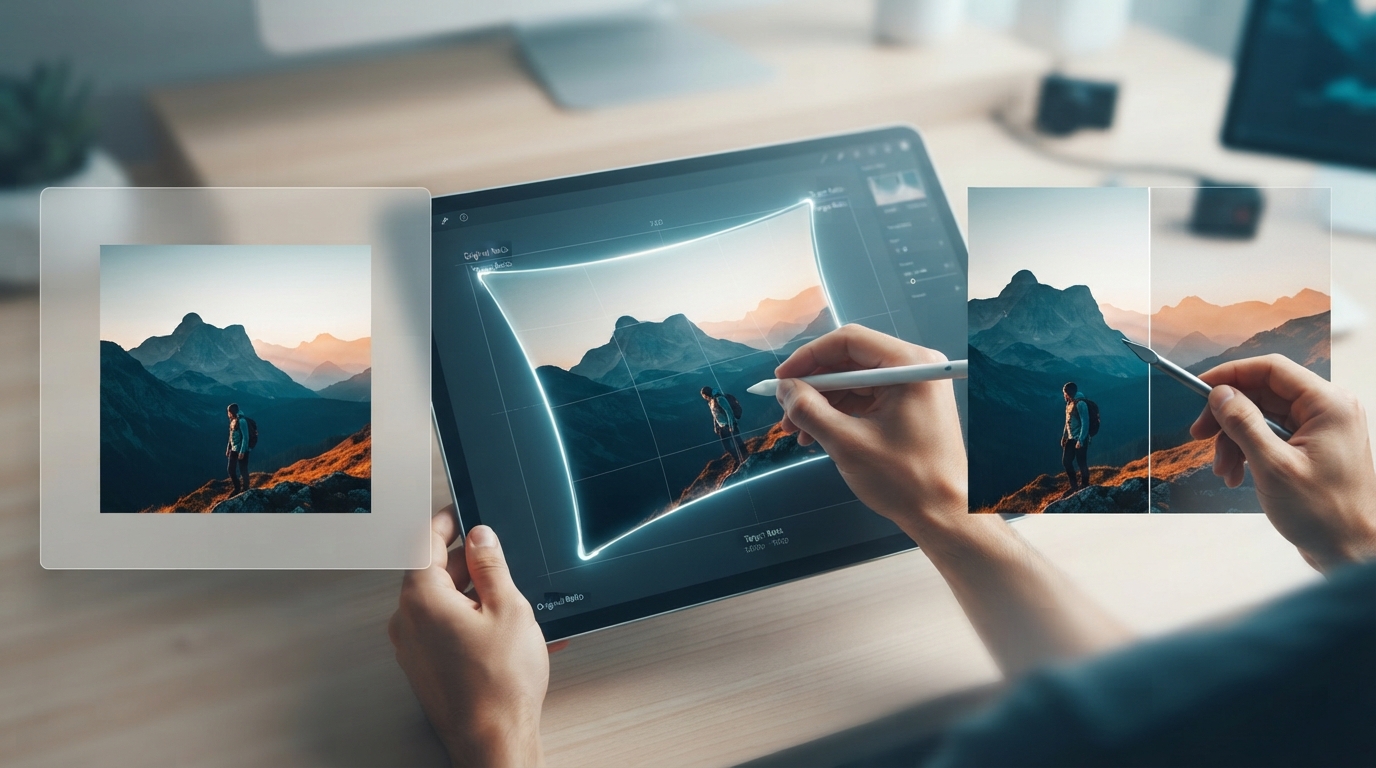
Resizing changes the pixel grid; changing the relationship between width and height can also distort the subject. Before editing, decide whether the destination permits margins or requires the entire frame to be filled. Those two requirements lead to different treatments.
A group portrait needs every person retained. A product crop may be allowed to remove unused background. If the source and target have different shapes, you cannot preserve the entire image, fill the target and preserve proportions all at once without adding or removing something.
Use proportional scaling when the shape already fits
In Resize Image, the Scale control changes both dimensions together. With a 2000 × 1000 source, a scale of 0.5 produces 1000 × 500. Editing width and height independently can change the ratio; the current tool does not turn arbitrary manual dimensions into a safe proportional crop.
Use this method when the destination accepts the resulting dimensions. A 2:1 source will remain 2:1 at every proportional scale, so scaling alone cannot make it square.
Choose a crop or margins for a fixed target
For a 2400 × 1600 source going into an 800 × 800 square, a centered square crop can keep a 1600 × 1600 region, followed by a 0.5 scale. This removes 400 source pixels from each side. Move the crop if the subject is off center and check handles, hair or text near the boundary.
If nothing may be removed, Image Studio's Keep whole image fit can place the full source inside the square. The fitted picture will be approximately 800 × 533 pixels, with the remaining vertical space used as margins. The exact integer rounding may differ by a pixel; the exported canvas should still be 800 × 800.
Verify the subject and the container separately
Use a circular object or a square label as a shape reference. Compare it with the original at matching display sizes. Then check the output file properties for exact canvas dimensions. A square canvas does not prove that the object inside it avoided distortion.
Finally inspect the actual webpage. A correctly exported image can still be stretched or cropped by its display container. If it looks correct in an image viewer but wrong in a card, check the page's fitting behavior rather than repeatedly altering the file.
Fit one landscape source into a square
A guided exercise, not a benchmark. Inspect your own output; results depend on the source and settings.
- Open Image Studio and note the source width and height.
- Set an 800 × 800 canvas and first try Keep whole image to retain all source content.
- Compare Fill and center crop; adjust the focal position if the subject is clipped.
- Export the preferred version and check both 800 × 800 dimensions and the shape of a known circular feature.
The final canvas has the required size, with no stretched subject and no unintended missing content.
Sources & further reading
Try an idea and review your result before saving your edits.