Prepare an image for a 200 KB upload limit
Choose useful dimensions, set a real file-size target and check both the bytes and the visible detail before uploading.
Try the workflow
Download the original practice image ↓Examples describe a practice workflow. Your file size, recognition accuracy and processing time depend on the source and your device.
Start with the destination
An upload form may limit file bytes, dimensions and format separately. Write down all three before editing. A 1600 × 1600 image can be a small file, while a much smaller PNG can exceed the limit. Dimensions alone do not tell you whether the file will upload.
Use JPG for an ordinary photograph when transparency is unnecessary. Keep PNG for a transparent logo or sharp graphic that needs lossless storage. Exporting a transparent source as JPG fills its transparent areas with the selected background color; review that color before downloading.
Set the target in Image Studio
Open the 200 KB preset and add your image. The Export & compress panel starts with JPG and a 200 KB target. Maximum quality is an upper limit for the encoder, not a promise that one setting will fit every image. Prepare the download, then read the size shown beside the result.
If the result cannot reach the target at its existing dimensions, enable Allow smaller dimensions to reach target. The tool may reduce dimensions, so compare the resulting width and height with the upload form's minimum. Leave some margin if the destination interprets KB differently: for a strict 200,000-byte limit, a 190 KB target is a practical starting point.
Check the actual result
Use the original/result preview to inspect fine text, hair, product edges and smooth gradients. Compression blocks are easier to see at full size than in a small thumbnail. If the detail is unacceptable, return to the original, choose a more useful crop or smaller dimensions, and export again.
Download the file and check its properties on your device. The reported target may be unattainable for a particular image; the interface marks outputs above the target rather than silently claiming success. Keep the original so that a later request for a larger version does not depend on the compressed copy.
An export you can reproduce
We imported a synthetic, textured 1920 × 1280 PNG into Image Studio, selected JPG, maximum quality 90 and a 190 KB target, and left Allow smaller dimensions off. The encoder reduced quality to meet the target. The downloaded file is 184,375 bytes, below a strict 200,000-byte upload limit, with dimensions unchanged.
- Source PNG
- 6,301,301 bytes
- Downloaded JPG
- 184,375 bytes
- Both dimensions
- 1920 × 1280
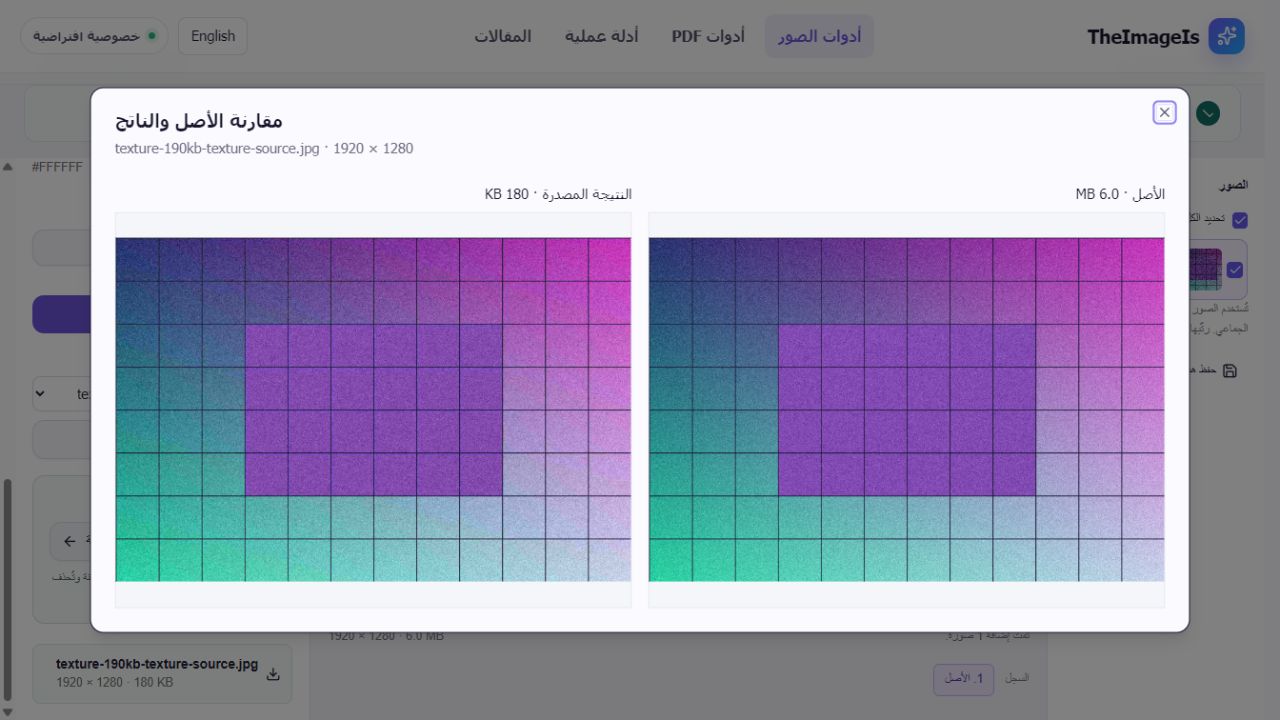
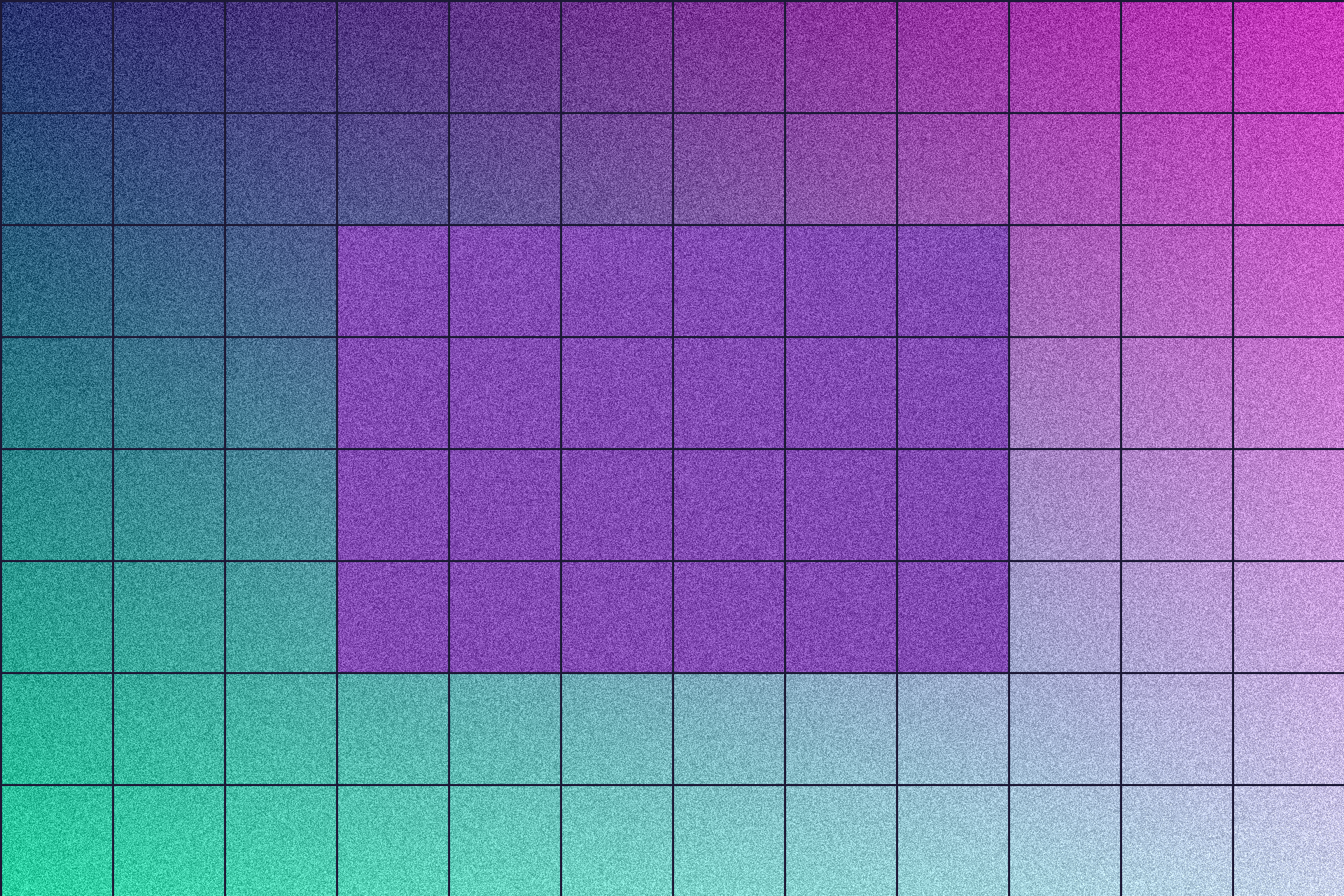
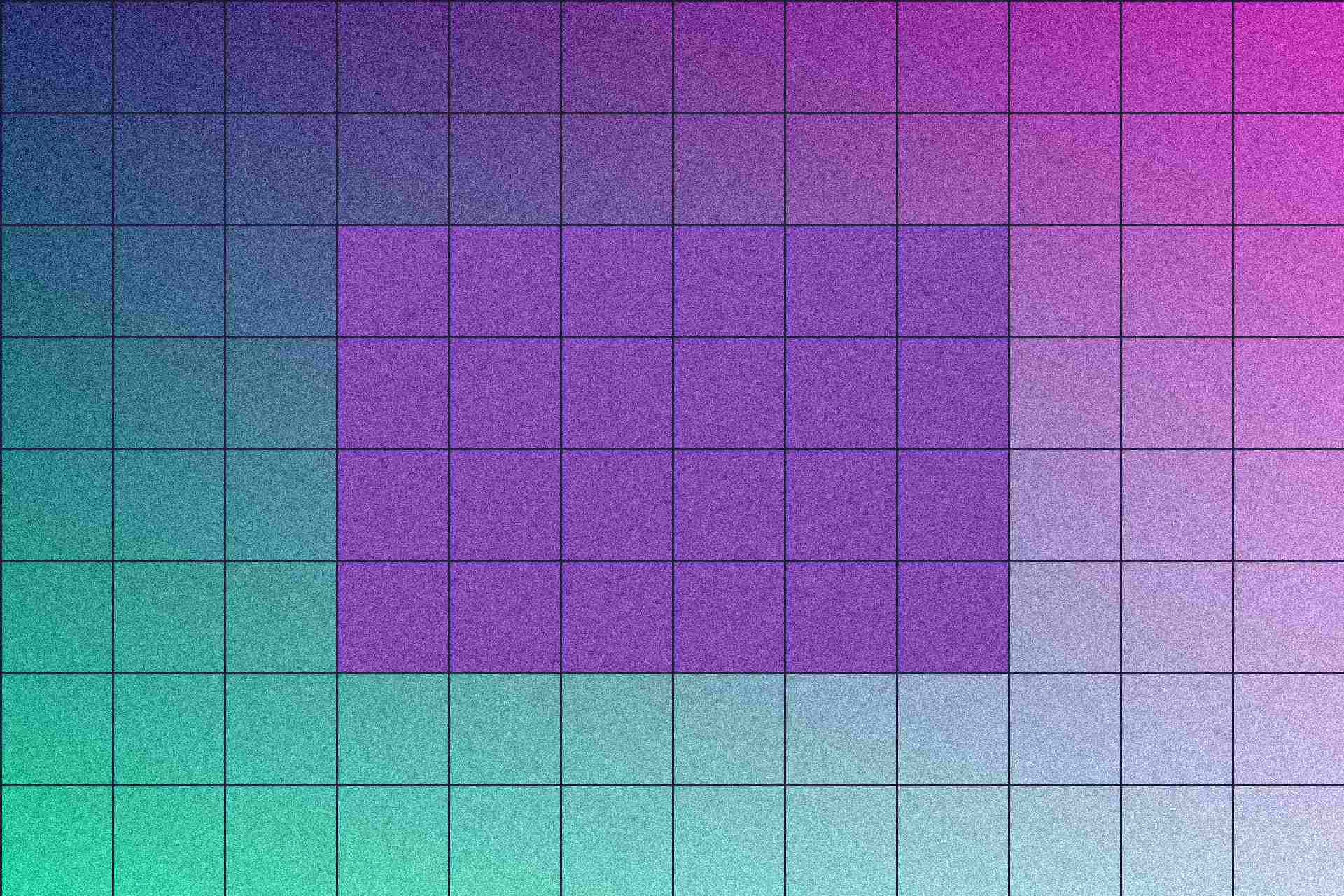
Measured files, dimensions, page text and SHA-256 checksums are available in the experiment record. Results can vary with the source and browser. Download experiment record
A real export you can inspect
We ran this synthetic 640 × 400 practice image through Compress image at quality 78. These are the actual downloaded files, measured in bytes. The checkerboard reveals transparency; it is not part of the image.

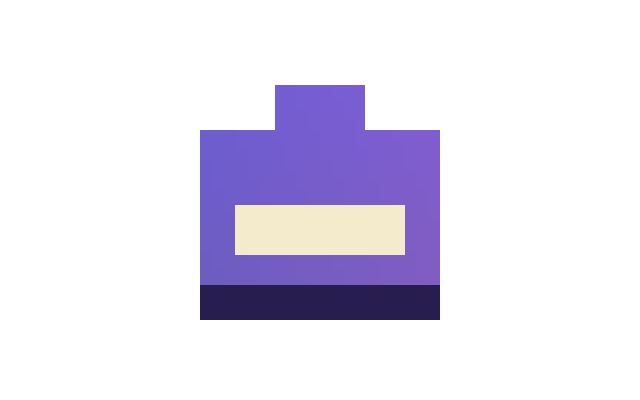

For this simple illustration, JPG is larger than the original PNG, while WebP is smaller. Photos and other settings can behave differently. Check the bytes and appearance of your own output before choosing a format; compression does not always make a file smaller.