Keep a Blog Featured Image Understandable on Mobile
Test how your actual theme crops the subject, simplify small-screen composition and check the published card.
Content updated:
Find out whether the theme scales or crops
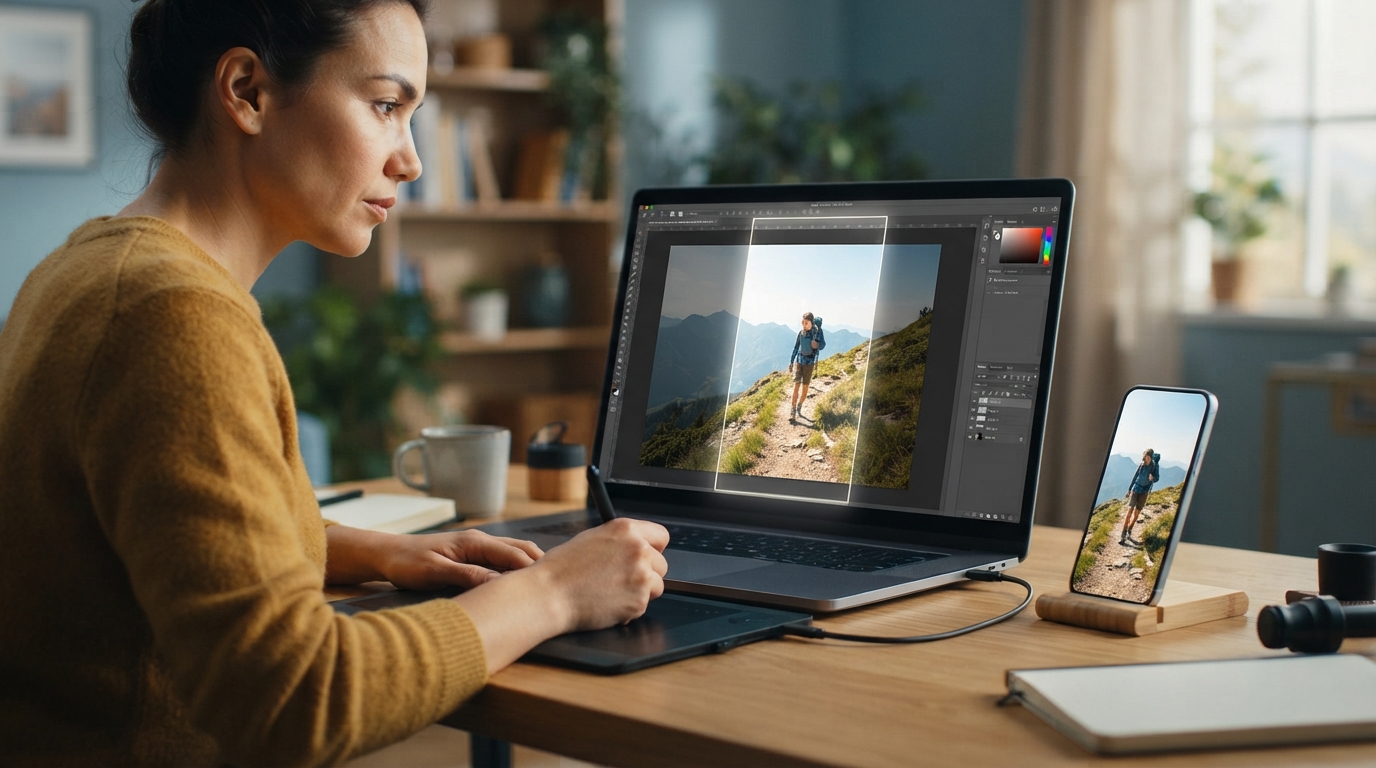
A narrow page can shrink the full image proportionally, or display it inside a fixed-shaped box that cuts off part of the source. Those behaviors require different preparation. Check the article header, the blog list card and the social preview separately; they may use different shapes.
A centered subject is a useful starting point, but a fixed central percentage cannot guarantee a safe crop. A long product, two people or an off-center diagram may not fit every card. When the layout needs a different composition, prepare a separate crop instead of shrinking everything into an unreadable cluster.
Choose the one detail readers need
For an illustrative article about a mug handle, the handle is the essential detail. A broad workshop photograph may look pleasing on a large screen but reduce the handle to a few pixels on a phone. Crop closer while preserving enough context to understand the image.
Avoid placing essential instructions only as tiny text inside the image. Put those instructions in the page body, and use alt text appropriate to the image's purpose. When a cover is decorative, it does not need an invented narrative or a list of keywords.
Prepare a crop for the actual slot
Open Crop Image with a copy of your source and match the shape used by your theme. Inspect the focal point before reducing dimensions. For an illustrative 360 CSS-pixel slot, a 720-pixel-wide candidate allows a 2× density comparison, but the layout and the source quality still determine what looks adequate.
Export two sensible candidates rather than assuming a single quality number is correct. Compare the subject and small edges at normal display size, then compare the actual file bytes. Use the 200 KB guide when a specific byte ceiling applies; a featured image does not automatically need that exact target.
Test the delivered page in three places
Preview the article at a narrow phone width and a wider tablet width. Inspect the actual blog-card crop too. If a subject is missing only in one location, change that crop or its focal positioning instead of repeatedly sharpening the source.
After upload, open the live or preview URL on a phone. Check that the correct image loaded and that the subject is understandable without zooming. A desktop editor preview cannot confirm the CMS's final transformation, and a smaller file alone cannot prove that the page loads quickly.
Protect one focal detail through every crop
A guided exercise, not a benchmark. Inspect your own output; results depend on the source and settings.
- Pick a source with one clearly identified focal detail.
- Use Crop Image to match the article slot, then export a separate copy.
- Check the article and blog card at phone and tablet widths.
- If one layout clips the detail, change its crop and repeat the check after upload.
The same important detail remains visible in the article, listing card and mobile preview.
Sources & further reading
Try an idea and review your result before saving your edits.