Designing Readable Text Overlays at the Size People Will See
Calculate how text shrinks with the image, use stable contrast and verify the downloaded graphic at its actual display width.
Content updated:
Calculate the displayed text size
Text drawn into an image shrinks with that image. In an illustrative 1200-pixel-wide graphic shown at 300 pixels, every dimension is divided by four. A 40-pixel headline becomes roughly 10 pixels high in CSS-pixel terms before differences in font metrics. It may look comfortable in the editor and be unreadable in the feed.
Start with the narrowest intended display width. Shorten the wording or enlarge the text until the message works there. Do not treat a percentage of canvas height as an accessibility standard; the displayed result is what readers encounter.
Make the reading surface predictable
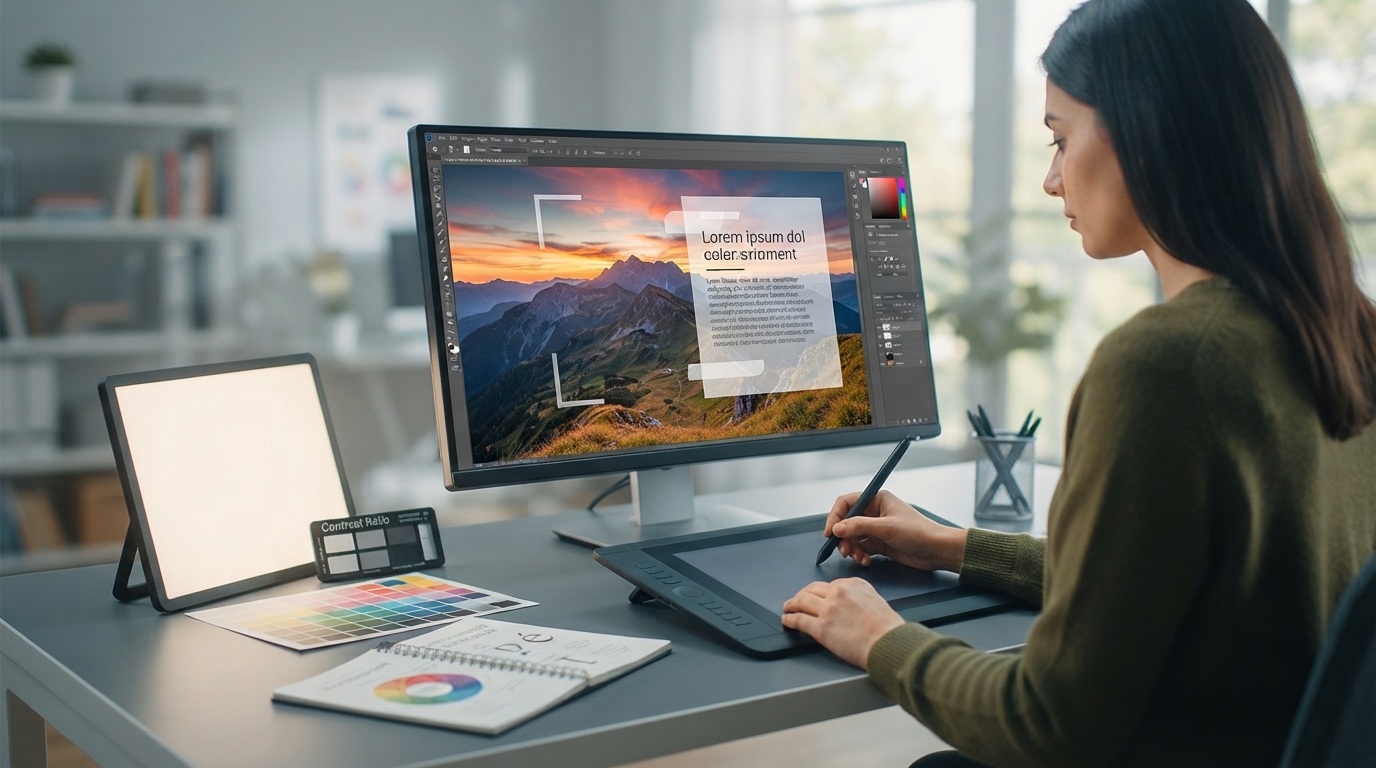
Inspect the entire area behind each line. White text may work over dark foliage and disappear over one bright leaf. A solid panel behind the text gives a stable background; a translucent panel still depends on what shows through it.
TheImageIs text tools let you adjust the font, size, position, color, outline and available effects. They are not automated contrast-certification tools. When the photograph remains too busy, place the caption in a separate area rather than adding increasingly heavy shadows.
Use the contrast standard accurately
WCAG's minimum contrast criterion generally requires 4.5:1 for normal text and 3:1 for qualifying large text, with defined exceptions. It also covers images of text. Evaluate the rendered size, rather than assuming that a large number in an export setting qualifies.
A grayscale preview can reveal competing tones, but it does not calculate the required ratio. Use a contrast checker on the text and actual background colors, and inspect the weakest portion of a photographic background. Meeting a ratio alone does not establish that a whole graphic or page is accessible.
Try a short, checkable announcement
For an illustrative 1200 × 630 announcement, use one brief headline and one supporting line. Preview it at 300 pixels wide. If a 40-pixel headline becomes too small, try a larger size or reduce the words. Compare two versions instead of assuming the first composition is correct.
Keep a clean source before the text is applied. For a translated version, reflow the wording and check Arabic shaping, punctuation and line order in the actual export. Different languages need different space; do not squeeze the same fixed rectangle until the type becomes unreadable.
Verify both pixels and accessible text
Export PNG for a first check of text edges, then compare any compressed web version. Inspect punctuation and small letter counters at full size and read the entire message at its intended display width. Avoid judging only from a zoomed-in screenshot.
For a webpage, use live HTML text where practical and provide an appropriate text alternative for meaningful images. A visible raster caption cannot be resized and restyled as flexibly as live text. Repeat essential event dates or instructions in the surrounding page content.
Read the graphic at 300 pixels wide
A guided exercise, not a benchmark. Inspect your own output; results depend on the source and settings.
- Create a short announcement on a 1200-pixel-wide canvas.
- Make two text-size variants and export them as PNG.
- Display both at 300 pixels wide and read every word, including the supporting line.
- Check text/background contrast separately and preserve the message as readable page text when publishing.
Pass only a version whose complete message is readable at the chosen display width. A grayscale check and personal readability test are useful inspections, not an accessibility certificate.
Sources & further reading
Try an idea and review your result before saving your edits.