How to Spot Invented Details and Artifacts in AI Image Upscaling
Learn how generative AI upscaling creates plausible textures from missing data, how to identify unintended artifacts, and how to verify image accuracy before publishing or printing.
The Difference Between Interpolation and Generative Detail
Traditional image resizing relies on mathematical interpolation, such as bicubic or bilinear algorithms. These methods calculate intermediate pixel values by averaging neighboring pixels. The resulting image becomes softer or blurrier as its dimensions increase, but it never introduces brand-new visual structures. What was absent in the source remains absent in the enlarged file.
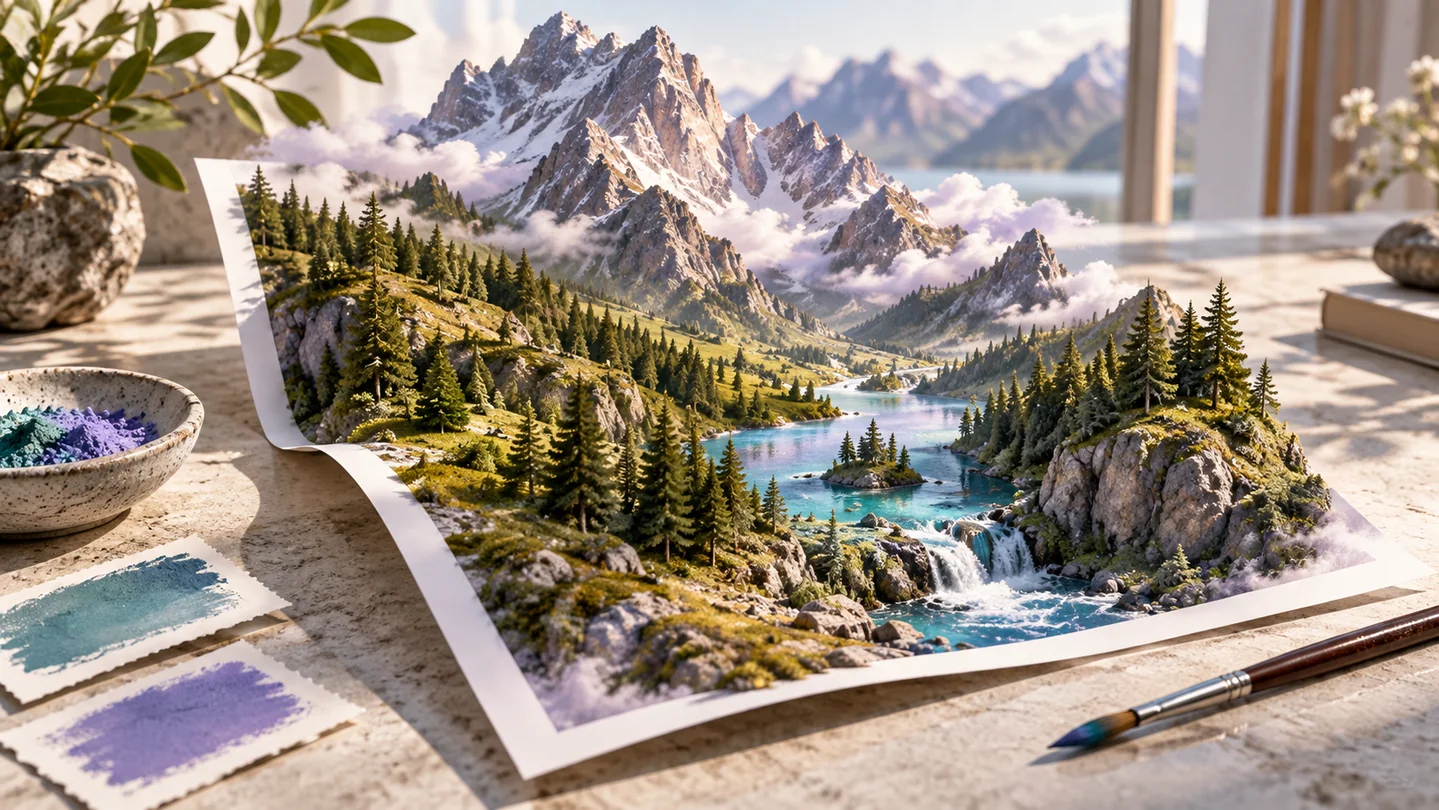
Artificial intelligence upscalers use trained neural networks to predict what higher-resolution details should look like based on patterns learned from large training datasets. Instead of merely smoothing transitions, an AI model synthesizes new lines, pores, edges, and textures. While this can make low-resolution graphics appear sharp, it means the model is actively inventing information that did not exist in the original sensor capture or source file.
Common Visual Hallucinations in Upscaled Media
Because AI models predict structures rather than retrieve actual lost data, they frequently introduce hallucinations—visual features generated purely from statistical probability. Recognizing these patterns helps you decide whether an upscaled image is suitable for production.
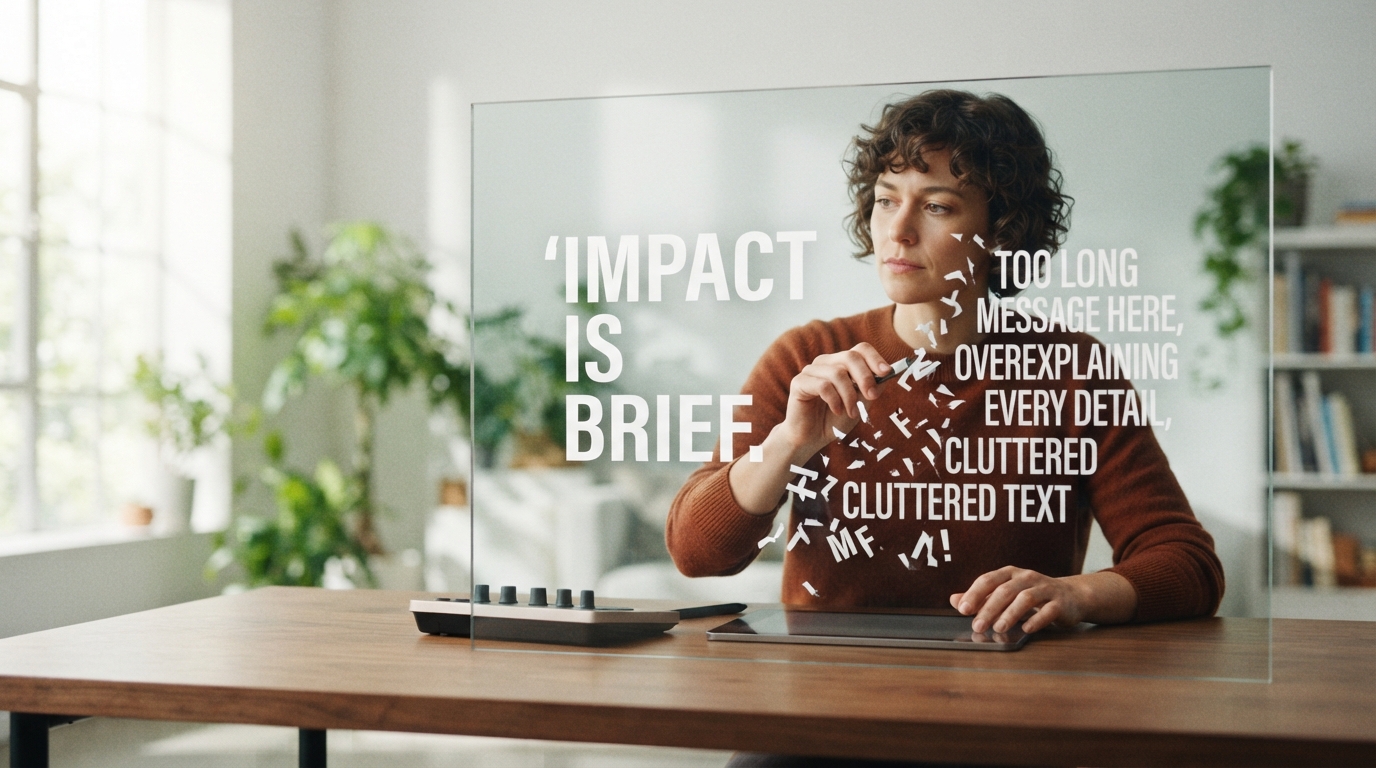
Text and typography represent the most frequent failure point. AI upscalers often turn distant signage, book titles, or label text into illegible, wavy glyphs that resemble real letters at a glance but have no linguistic meaning. Fine organic textures also behave unpredictably. Hair strands may merge into plastic-looking ridges, fabric weaves can turn into synthetic honeycomb patterns, and skin pores can either vanish entirely into waxy smoothness or become exaggerated into unnatural speckled noise.
Repetitive architectural elements, such as brick mortar, window mullions, and roof shingles, can warp or bend unnaturally. The upscaler might interpret a straight shadow edge as an architectural seam, generating jagged or wandering geometry where clean geometric lines should be.
A Practical Inspection Workflow for Verification
Before sending an AI-enlarged image to print or uploading it to an e-commerce catalog, perform a systematic manual inspection using a layer-based editor or viewer that supports a 100 percent zoom level.
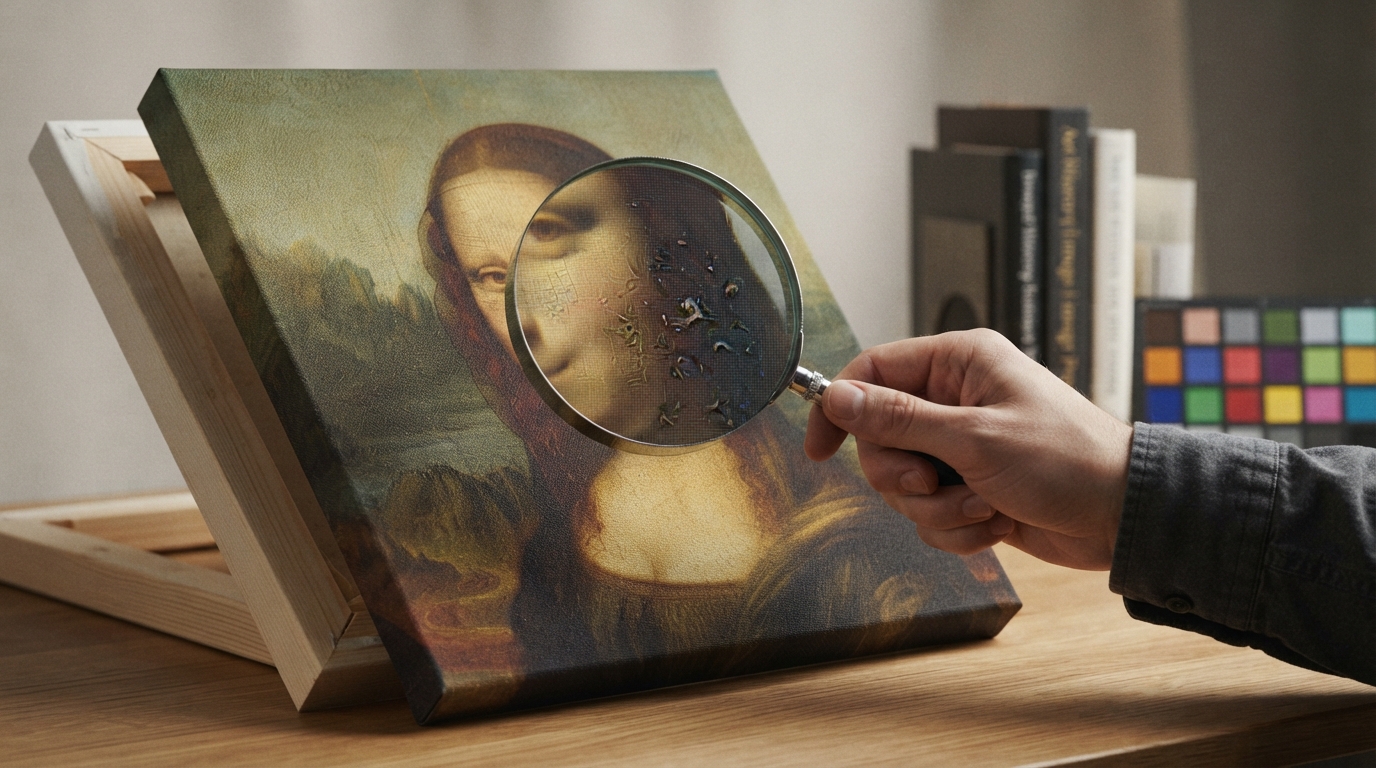
First, place the original source image and the upscaled image side by side, or align them on separate layers. Scale the preview to 100 percent actual pixels on the upscaled version. Scanning the image at full zoom ensures you are seeing individual pixel boundaries rather than monitor-side downsampling artifacts.
Second, inspect the highest-priority regions: human faces, brand logos, product labels, and background edges. For instance, in an illustrative scenario where an online seller upscales an old 600 by 400 pixel product photo to 2400 by 1600 pixels, check the nutritional panel, ingredient text, and brand emblem. If the small print turns into melted forms or the logo border shows double lines, the upscaled file is misleading and legally risky for retail listings.
Third, look for edge haloing and over-sharpening fringes. Generative models frequently produce hyper-contrasted white or dark contours around high-contrast silhouettes. These halos make graphics look cut out and unnatural against natural backgrounds.
Balancing Sharpness Against Truthful Representation
Deciding whether to use an AI-upscaled result depends entirely on the purpose of the final image. Decorative assets, background plates, and abstract graphics benefit significantly from generative upscaling because absolute accuracy is secondary to perceived visual clarity.
In contrast, documentary photography, medical scans, historical archival material, and e-commerce product listings demand fidelity over aesthetic sharpness. For an e-commerce garment listing, an AI model that transforms a smooth polyester weave into a ribbed corduroy texture misrepresents the physical item, leading to customer dissatisfaction and returns.
When fidelity is critical, consider using a blended approach. You can retain the sharpened background from an AI upscale while masking and restoring the original, un-hallucinated product details, logos, or faces from the source file. Alternatively, traditional bicubic resampling paired with mild unsharp masking preserves the authentic boundaries of the original subject without fabricating deceptive textures.
Next Steps for Cleaner Output
Whenever possible, avoid aggressive upscaling factors such as four times or eight times magnification from heavily compressed source files. Starting from an uncompressed PNG or high-bitrate file yields substantially fewer hallucinations than enlarging a blocky, low-bitrate JPEG.
If you regularly prepare assets for display or print, evaluate multiple upscaling tools side by side on identical test crops containing fine text, skin, and fine lines to observe how each engine handles ambiguous edge data.
Try an idea and review your result before saving your edits.